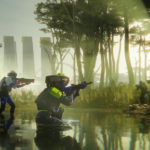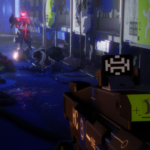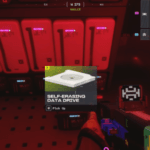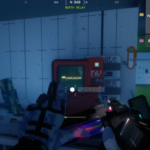

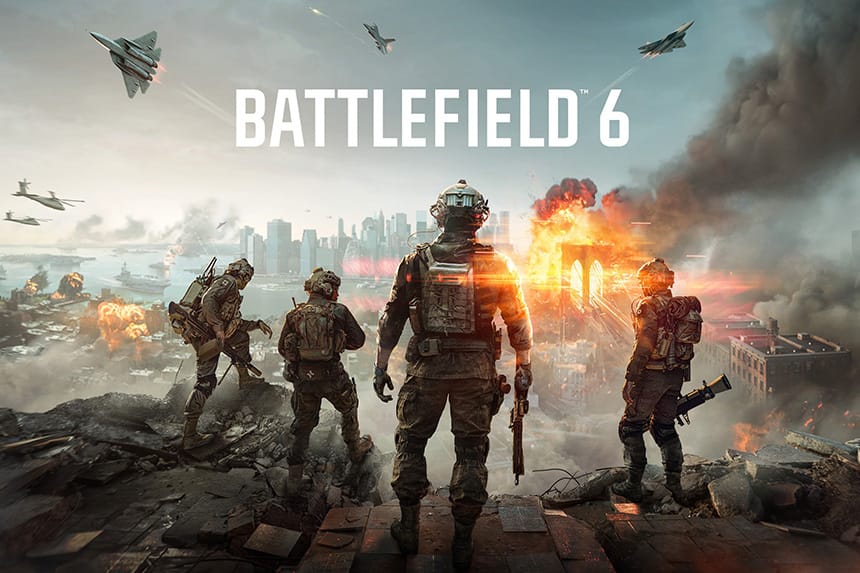
Lately, we have seen a couple of Battlefield 6 players who have experienced invisible weapons, gadgets, and character issues. Some players have reported this strange and frustrating technical glitch where their equipped weapons, gadgets, and characters become invisible suddenly while playing the game. At first, this seems a server issue rather than a graphical glitch. If the same thing is happening to you as well, this guide has covered all possible solutions to fix it.
How to Fix Equipped Weapon/Gadget/Character Becomes Invisible In Battlefield 6
Like many other players, if your weapon, gadget, and character are becoming invisible too while playing BF6, then the following solutions can help you to eliminate this problem.
1. Install or Move the Game to an SSD
If you are running the game from an SSD, it will help to reduce loading times. So, it is advisable to reinstall or move your game from HDD to SSD. You can do this via Steam >> Settings >> Installed Files >> Move Install Folder. Or if you have the EA App, then go to Manage >> Move Game.
2. Restart Steam/EA App
At times, the launcher itself is bugged and causes this problem. If that is the case, try restarting Steam or the EA App and check if the issue is resolved. Many players suggest this simple trick, so give it a try.
3. Set Graphics Settings to Performance
While playing modern online games, if you lower graphics quality, it will help to improve loading speed and reduce the chance of textures failing. Follow the steps below to do this:
- Launch the game
- Go to Settings >> Graphics
- Set Graphics Quality or Preset to Performance or Low
- Additionally, Disable extra features like Ray Tracing, DLSS, and Motion Blur
- Once done, save the settings and relaunch the game.
4. Repair Game Files
Sometimes the game files get corrupted, and due to that issue, weapons, gadgets, and characters do not load properly. So, in this method, we will try fixing such game files by verifying the integrity of the game files. Here is how to do it:
For Steam: Go to Steam Library >> Right-click on the game >> Properties >> Local Files >> Verify integrity of game files.
For EA App: Open up the EA App >> Go to My Collection >> Find the game BF6 >> Click on the three dots and select Repair >> Once the process is done, relaunch the game.
5. Run Game as Administrator
Sometimes, the game requires administrator privileges for smooth operation on your system. Try to run the game as an administrator and see if it helps resolve the issue.
- Go to the folder where the game is installed on your PC
- Right-click on the game’s executable file (BF6.exe)
- Select Properties >> Compatibility
- Check “Run this program as an administrator.”
- Click on Apply >> Ok, and then relaunch the game.
6. Repair EA AntiCheat
In case the AntiCheat system itself is corrupted, it may fail to load certain assets of the game and cause invisible weapon, gadget, or character issues. So, try repairing EA AntiCheat by following the steps below:
- Go to the folder where the game is installed on your PC
- Open the EA AntiCheat folder
- Run EAAntiCheatInstaller.exe
- Select Battlefield 6 Beta from the dropdown list
- Click on “Repair.”
- Once done, reboot your PC and relaunch the game.
7. Make an Exception for Game EXE in Exploit Protection
Windows Exploit Protection can sometimes mistakenly block the process of the game and prevent the game’s assets from loading. So, it is advisable to add an exception to eliminate this issue. Here is how you can do it:
- Press the Win + S keys on your keyboard, type Windows Security, and open it
- Go to App & browser control >> Exploit protection settings
- Click Program settings >> Add program to customize >> Choose exact file path
- Go to the Battlefield 6 Beta installation folder and select the game’s .exe file
- Turn off any features that might interfere, such as “Control Flow Guard”
- Save changes, reboot your PC, and relaunch the game.
8. Try Downloading the Game via the EA App or Steam
Some players suggest switching the launchers has helped them resolve this glitch. Therefore, if you are playing the game on Steam, uninstall it and reinstall it from the EA App. On the other hand, if you are on the EA App, uninstall the game and reinstall it via Steam.
That’s all you can try fixing the Battlefield 6 equipped weapon/gadget/character becomes invisible issue.