
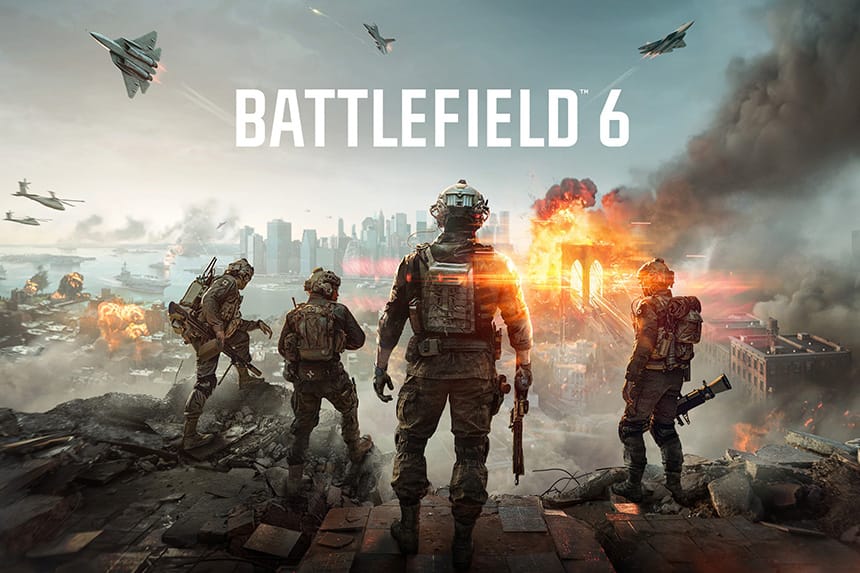
Battlefield 6 is out, and this time, developers have made significant efforts to enhance the mechanics of the game. However, many players have noted several issues and errors with the game. One of the common problems we found is that the game is crashing with no error or silent crashing at the splash screen. If you are encountering the same issues and seeking the best solutions, this guide is perfect for you.
- How to Fix Battlefield 6 Crash with No Error
- 1. Uninstall Old EA Anti-Cheat
- 2. Disable XMP / DOCP in BIOS
- 3. Set EXPO to Auto (for AMD PCs)
- 4. Disable “Force randomization for images (Mandatory ASLR)” in Windows Exploit Protection
- 5. Closing Background Apps
- 6. Repair Game Files
- 7. Disable Audio Enhancements
- 8. NVIDIA Driver Rollback and Clean Installation
- 9. Disconnect RAID or Backup Drives / Delete Windows Storage Pool
- 10. Disable DLSS
How to Fix Battlefield 6 Crash with No Error
According to players, they have already tried several methods, but none of them worked to fix the issue. Thankfully, we have referred several threads and comments and gathered all working solutions here in this guide. Let’s find out how to fix the crash with no error or silent crash at the splash screen in Battlefield 6.
1. Uninstall Old EA Anti-Cheat
The very first solution a lot of players suggest is to uninstall the old version of EA Anticheat and let the game install its latest version. If your system has any older leftover files from the older version of EA Anticheat, it will cause this issue. Here is how to do it:
- First of all, go to the folder where the game is installed on your PC
- Open the EAAntiCheat folder
- Find the file named EAAntiCheat.exe and double-click on it
- From the drop-down list, select Battlefield 6 or choose Uninstall All if you find the option
- Once it is remove, close the tool
- Now, launch the game from Steam or the EA App
- The game will ask you to install the latest version of EAAntiCheat
- Follow the on-screen instructions and complete the installation
- Once installed, relaunch the game, and you should be good to go.
2. Disable XMP / DOCP in BIOS
The next solution suggested by many players is to disable XMP/DOCP in the BIOS. Players report that both memory overclock profiles are the culprit and cause crashing issues in BF6. Here is how you can disable them:
- First of all, restart your PC and press the BIOS keys repeatedly (Delete, F2, or Esc)
- Once you are in BIOS settings, check for memory settings. On Intel PCs, it will be called XMP, and on AMD PCs, it will be called DOCP.
- Then, simply disable it
- Once done, save the changes and exit from the BIOS settings
- Reboot your PC and relaunch the game.
3. Set EXPO to Auto (for AMD PCs)
A few AMD users said that they did not disable memory profiles completely, but setting EXPO to Auto will also help to fix the issue. Below are the steps to do that:
- First of all, restart your PC and press the BIOS keys repeatedly (Delete, F2, or Esc)
- Go to the AI Tweaker / OC Tweaker / Overclocking section
- Find the EXPO option
- Change it from your current EXPO profile (EXPO I / EXPO II) to Auto
- Save and exit from the BIOS window
- Reboot your PC and restart your game.
4. Disable “Force randomization for images (Mandatory ASLR)” in Windows Exploit Protection
One of the players has fixed the crashing issue by disabling “Force randomization for images”. This setting will force the app to randomize memory image locations, which conflicts with some online games, including BF6. So, the issue can be resolved if you turn it off.
- Go to Windows Security settings on your PC by pressing the Win + S keys
- Click on App & browser control
- Scroll down and click Exploit protection settings
- Under System settings, locate Force randomization for images (Mandatory ASLR)
- Change it from On by default to Off by default
- Reboot your PC and relaunch the game.
5. Closing Background Apps
Some applications and programs running in the background unnecessarily can also cause the game to crash. So, try closing all of them from the Task Manager and then relaunch the game. In addition, also try closing Xbox app, Discord, and Battle.net and then relaunch the game.
6. Repair Game Files
Any missing or corrupted game files can also cause this issue. So, try this classic trick to resolve several issues with the game. Here is how you can fix the game files via Steam and the EA App.
For Steam: Go to Steam Library >> Right-click on the game >> Properties >> Local Files >> Verify integrity of game files.
For EA App: Open up the EA App >> Go to My Collection >> Find the game BF6 >> Click on three dots and select Repair >> Once the process is done, relaunch the game.
7. Disable Audio Enhancements
A few players report that the issue is in the sound device’s audio enhancement features, and disabling it can help to fix the crashing issue. To do that:
- Right-click the speaker icon in your taskbar and select Sounds
- Then, go to the Playback tab
- Select your default playback device (usually your speakers or headset) and then click Properties.
- Go to the Enhancements tab.
- Check Disable all enhancements or manually uncheck all enhancement features.
- Click on Apply, then Ok
- Once done, relaunch the game, and the crashing issue should be fixed now.
8. NVIDIA Driver Rollback and Clean Installation
Some BF6 beta players report that the newest version of NVIDIA drivers is causing instability and frequent crashes in the game. So, in that case, the best solution is to roll back to an older version. For this, download and install an older driver from the official website of NVIDIA. After installing the older version, make sure to reboot your PC once and then relaunch the game.
9. Disconnect RAID or Backup Drives / Delete Windows Storage Pool
Some players found that the crashing issue happens when RAID arrays or Windows storage pools are active. So, try disconnecting the RAID or deleting the Windows storage pool to fix the problem.
- Shut down your PC completely.
- If you have backup hard drives or RAID drives, unplug their SATA cables or power cables.
- If you use a Windows Storage Pool, you can disable it in Windows settings instead of unplugging it
- Once done, reboot your PC using only your main system drive
- At last, relaunch the game.
10. Disable DLSS
DLSS (Deep Learning Super Sampling) is an NVIDIA technology that uses AI to boost game performance by rendering at a lower resolution and upscaling to a higher resolution. But sometimes, it causes crashing issues while accessing many modern online games, including BF6. So, the best bet is to disable it and then relaunch the game. Here is how you can disable it:
- Launch the game from the main menu
- Go to Settings >> Graphics >> Advanced Graphics Settings
- Find the DLSS option
- Set DLSS to Off or Disabled
- Once done, apply the changes and relaunch the game.
That’s all you can try to fix the Battlefield 6 crashing issue with no error.