
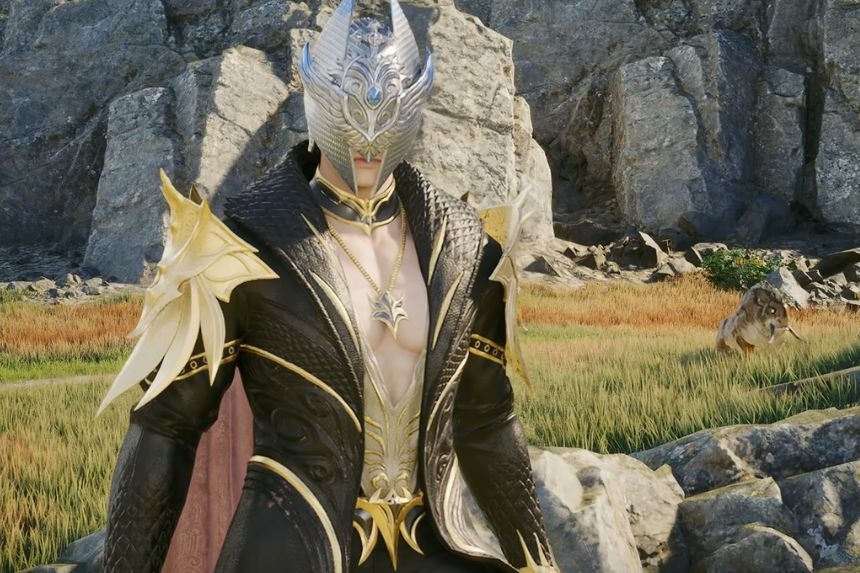
Character Presets in AION 2 make it easier to prepare and switch between different character setups. You can combine Gear, Skills, Title, Wings, Pantheons, and Genus Insight presets. You even have appearance presets, which allow you to save looks. Here’s how to make, manage, switch, and temporarily change your Character Presets.
What Are Character Presets?
The Character Build Preset system provides Set 1, Set 2, and Set 3. Each Set can combine one preset from six categories:
- Gear
- Skills
- Title
- Wings
- Pantheon
- Genus Insight
The preset numbers do not need to match. For example, a Set can use Gear Preset 2, Skill Preset 1, and Wings Preset 3.
How to Set Up Character Build Presets
You will first need to access Open Batch Preset Equip from your preset control on the HUD where you will find Set 1, 2, or 3. Then select the preset number for each category and tap Save Changes.
You are free to create any combination of your choice from the presets. After saving, equipping the Set would enable the user to use all of the related presets at once.
How to Set Up Gear Presets
To open the Cube and select Preset 1, 2, or 3, you must select from the tabs next to the equipped gear. You can then choose all the weapons, armor, accessories, and other equipment according to that preset.
You can choose another preset in order to configure another set of equipment and can easily switch these presets whenever you want.
The only requirement for switching Gear Presets is that enough space must be present in the Cube. If the Cube has insufficient space to accommodate the equipment, you will not be able to make that switch. Gear Preset switching also has a short cooldown.
How to Set Up Skill Presets
In the Skills menu, click on one of the three Presets at the upper-right corner. Set the specifics for the active and passive skills that you want for that Preset, such as levels and hotbar arrangement.
Each of the Skill Presets can have its own individual settings, allowing the player to assign skill points differently while changing builds.
Appearance Presets
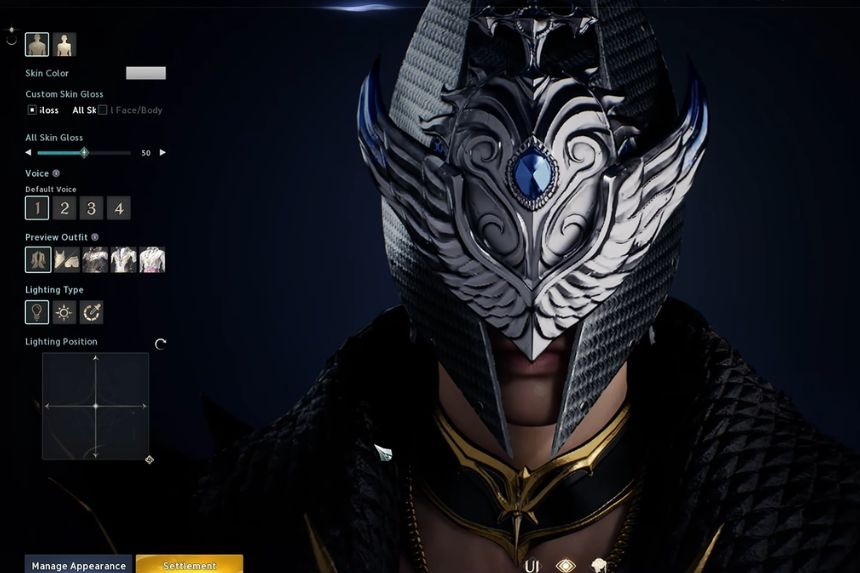
The Appearance presets are different from the Character Build Presets and are used to store various kinds of appearances of your character. To save the appearance of your character, you must open the Customization option from the main menu and choose Manage Appearance.
Make sure that you do not have any existing appearance slot selected and then press the Save button. If you save while having an appearance slot selected, that appearance will be lost.
How to Download Presets
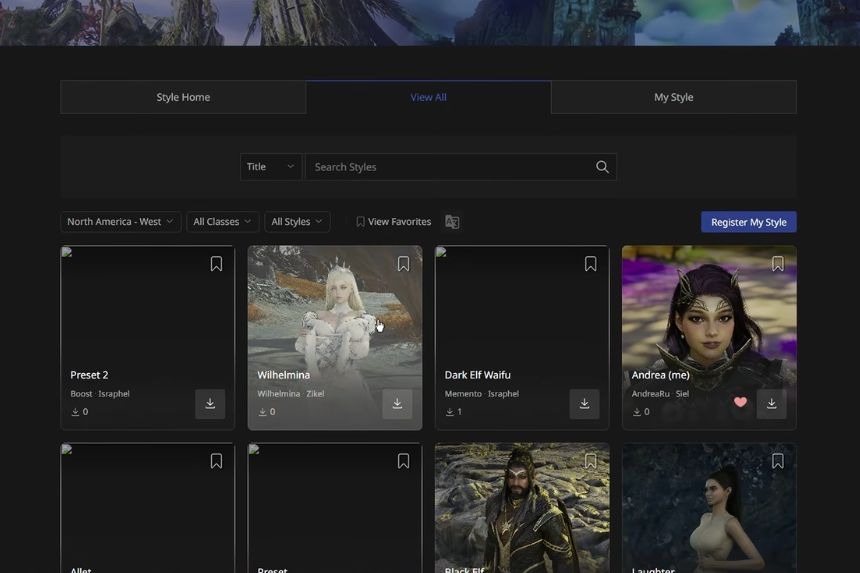
You may download other players’ appearances via AION 2 Style Shop. When logged in, go to Character Change and select your character to see the available looks. When you come back to AION 2, press Refresh in your storage where the looks are saved and the necessary information will be available. Choose Load and apply the required currency to use it.
How to Switch Character Presets
To completely transform your setup, use Set 1, Set 2, or Set 3. You will then be applying the presets from that respective Set, including Elements, Abilities, Name, Wing, Pantheon, and Insights related to Genus. In addition, it is possible to switch specific presets. Gear presets can be changed through the cube while skills presets can be altered in the Skills menu.
How to Organize Your Sets
It is not necessary to set the three Sets up in any particular way. You could arrange them according to the type of gameplay, for example, general PvE, boss fights and dungeons, or PvP. It is advisable to choose presets that serve a similar function within each Set. This makes it easier to change your overall setup without adjusting every category separately.
Temporary Preset Changes
It is possible to change the values of the preset settings in your current Set without saving these changes. Temporary Equip settings are displayed with a blue signal icon. If you want to save the new combination, click Save Changes. Otherwise, equipping another Set or re-equipping the current Set without saving will remove the temporary changes.