
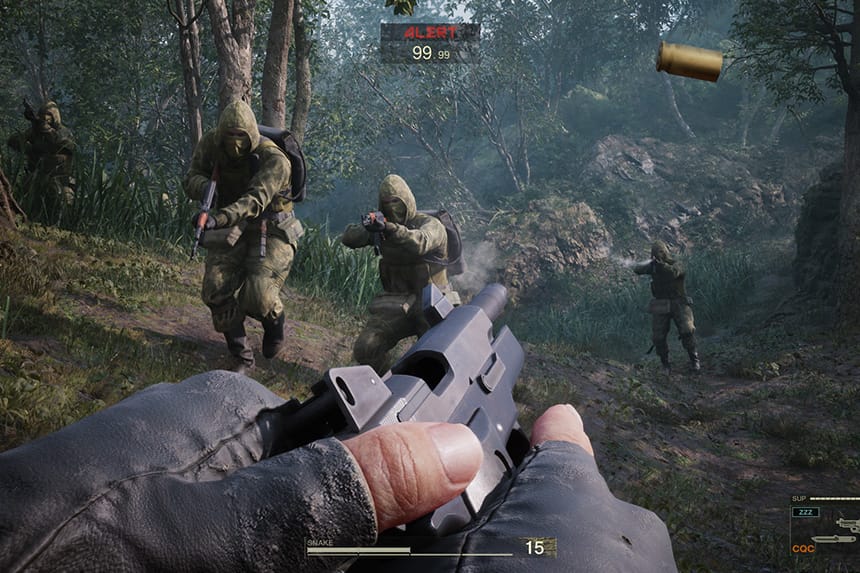
Metal Gear Solid 3: Snake Eater is the latest action-adventure game developed and published by Konami. The game can now be played on Xbox Series X|S, PS5, and PC. However, like its previous editions, this game is also not free from multiple bugs and errors. One of the main problems a lot of players are experiencing is the 60 FPS lock issue. Due to this issue, many players report that the game feels unstable when they attempt to push beyond 60 FPS. Well, there are a few workarounds you can try to fix this problem.
How to Fix Metal Gear Solid 3: Snake Eater 60 FPS Lock Issue
According to reports, 120 FPS should be the minimum for FPS on every PC game in 2025, especially in fast-paced genres like shooters and action games. Thankfully, some players suggest a few potential solutions to fix this issue.
1. Force Monitor Refresh Rate to 60Hz While Playing
One of the first solutions suggested by a few players is to force the monitor refresh rate to 60Hz while playing the game. This simple trick offers smoother and more consistent gameplay. Here is how you can do it on your PC.
- Go to the Settings on your PC
- Then, click on Display settings >> Advanced display settings
- Under Choose a refresh rate, select 60Hz
- Once done, relaunch the game
2. Use Smooth Frame / Frame Pacing Option (For NVIDIA Users)
If you are a NVIDIA user, then you can try this method to resolve the issue. NVIDIA drivers and control panel settings offer frame-pacing tools that can stabilize frame delivery. This feature helps to minimize frame-time inconsistencies when the game is locked to 60 FPS. Follow the steps below to do this:
- Go to the NVIDIA Control Panel
- Then, go to Manage 3D Settings >> Program Settings
- Add the game to the list and set the following:
- Max Frame Rate – 60 FPS
- Low Latency Mode – ON
- Vertical Sync – Adaptive
- (Optional) Enable G-Sync/FreeSync in monitor settings if supported
- NVIDIA Frame Generation (DLSS 3)
- If you own an RTX 40-series card, enable DLSS + Frame Generation (in-game or via NVIDIA Profile Inspector)
Even with a 60 cap, it can interpolate extra frames for smoother motion.
3. Forcing a Custom FPS Limit via Engine.ini
This is also one of the best solutions to fix this problem. In this workaround, you will need to edit the Engine.ini file directly. If you have no idea about it, .ini files are UE settings files where you can force particular parameters that might not be available in the game’s menu. Here is how you can do it:
- Go to C:\Users\YOURNAME\AppData\Local\MGSDelta\Saved\Config\Windows
- Then, open Engine.ini and at the very end, add the following lines and save
- [/script/engine.engine]
- bSmoothFrameRate=False
- bUseFixedFrameRate=True
- FixedFrameRate=120
- [SystemSettings]
- bUseFixedFrameRate=True
- bSmoothFrameRate=False
- FixedFrameRate=120
- FrameRateLimit=120.0
IMPORTANT: Replace 120 with your desired FPS (e.g., 90, 144, etc.) depending on your monitor and PC’s capability, otherwise you’ll get a slow motion effect.
That’s all you can try fixing the Metal Gear Solid 3: Snake Eater 60 FPS lock issue.