
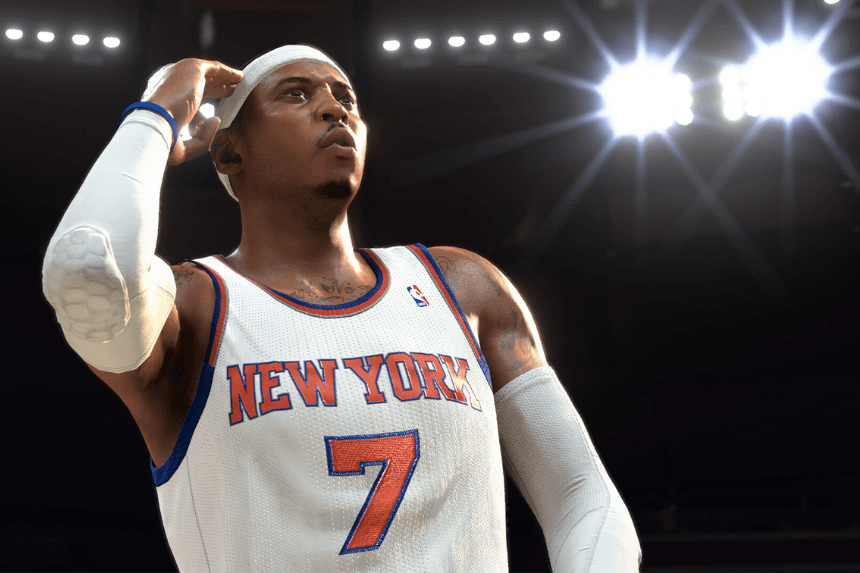
The shot meter has been a staple of the NBA 2K franchise for a number of years, assisting in allowing players to time their jumpers, layups, and free throws. Some utilize it as a crutch, but there are also experienced players that prefer to have the meter switched off and utilize player animations, badges, and muscle memory.
Turning off the shot meter will provide you with a cleaner HUD, fewer in-game distractions, and even a little bit of improved shooting depending on how you’ve configured things.
We’ll illustrate how to turn off the shot meter in NBA 2K26 through several menus that have the settings, along with some community tips and tricks and the ability to tinker.
Accessing the Shot Meter Settings
There are two main ways of reaching the shot meter options of NBA 2K26: from the Features menu under the main menu, or under MyCareer’s Animations and HUD customization tab.
Method 1: From Main Menu (Features)
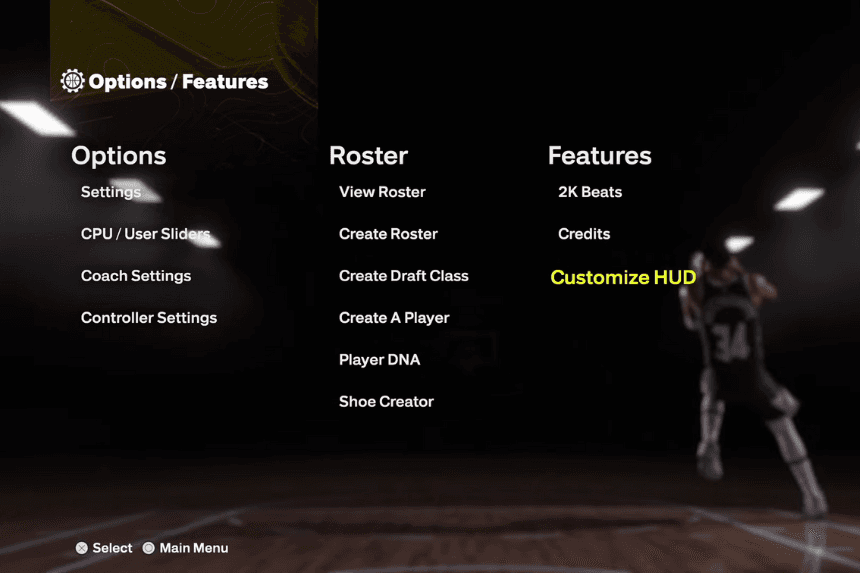
- Head to the Main Menu.
- Click Features.
- Head to the Customize HUD section.
- Scroll down to Shot Meter → Graphics.
Method 2: From MyCareer
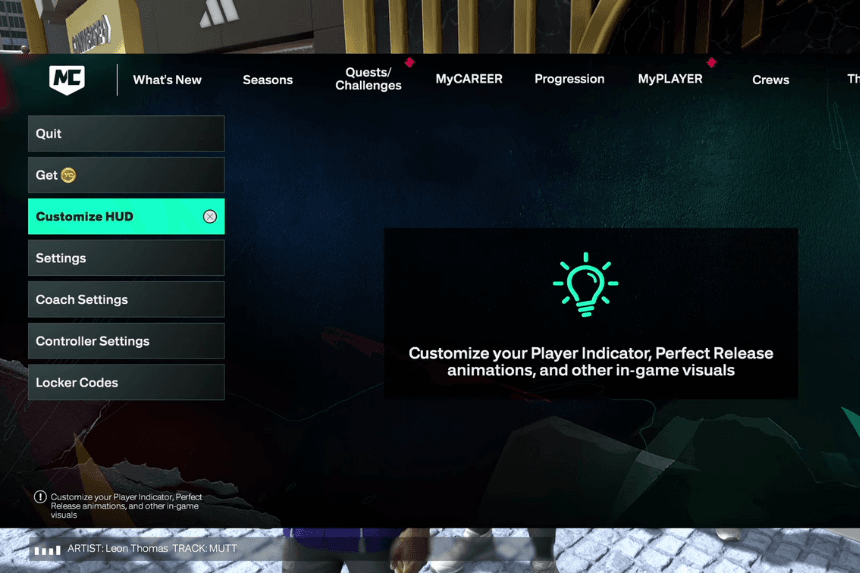
If the main menu method is not available for your mode, you can also find the setting in MyCareer:
- Open MyCareer mode.
- Navigate to the MyPlayer tab.
- Navigate to Animations.
- Select Customize HUD at the top of the screen.
- Navigate to the Shot Meter → Graphics section.
Turn off the Shot Meter
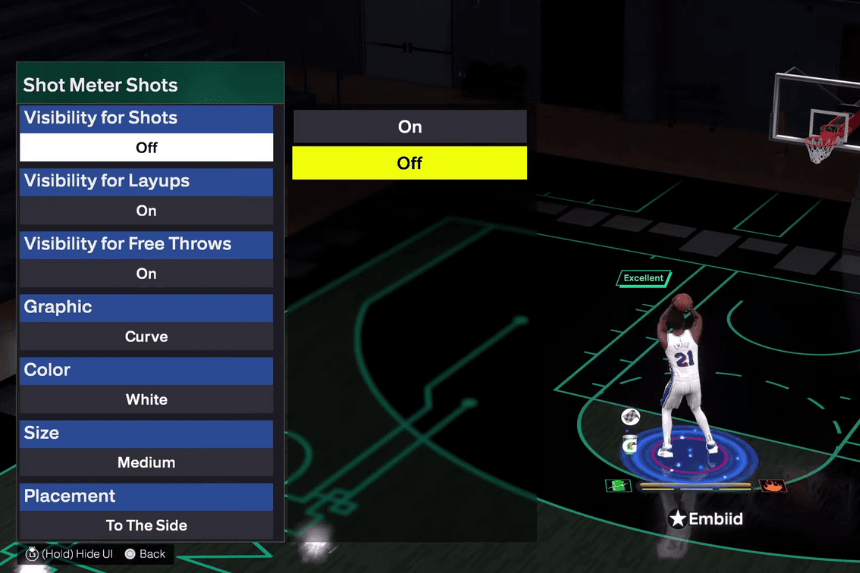
In the Shot Meter settings, you can manage individually when and how the meter appears.
- Visibility for Shots: Switch to No to disable the meter on jump shots.
- Visibility for Layups: Switch to No to remove the meter on driving or close-L layups.
- Visibility for Free Throws: Switch to No if you wish to concentrate on rhythm alone and practice foul shots.
Optional Customization
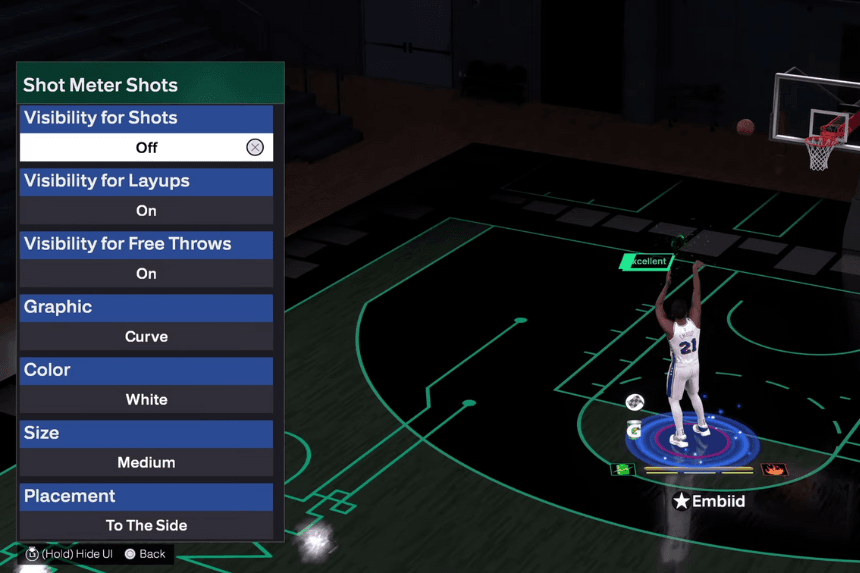
If you do not wish to disable the meter altogether, NBA 2K26 offers you some things to customize:
- Size: Alter the size of how large or tiny the meter is.
- Color: Choose from a number of visual motifs to suit your preferences.
- Position: Move the shot meter to a place on the screen where it is least obtrusive.
These are settings to control the experience rather than remove the feature entirely.
It is simple to turn off the shot meter in NBA 2K26 once you learn where to do so. It is possible to navigate to it through either the Features menu or MyCareer HUD settings and turn off the meter on shots, layups, and free throws to have a cleaner UI and rely more on timing and visual cues.
For competitive players, disabling the meter will usually lead to more precise shooting mechanics, but others may be more comfortable with the security of having it on and custom tweaked. It’s actually a matter of style and preference.