
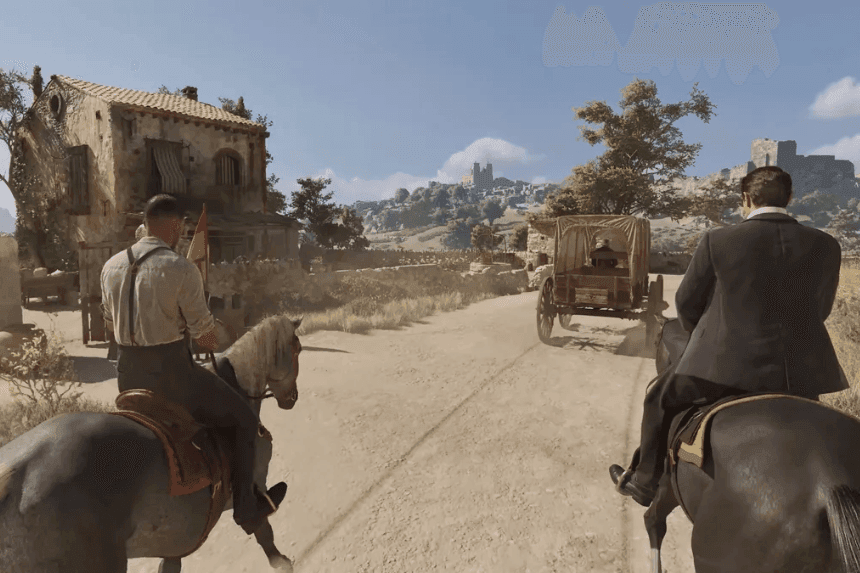
The latest action-adventure game, Mafia: The Old Country, is out now on Xbox Series X|S, PS5, and PC. Fans say that this game offers a strong narrative and immersive experience. However, like any other modern online game, Mafia: The Old Country is also not free from multiple bugs and errors. One of the common issues reported by a lot of players is that the game is not launching or crashing at startup. If you are also running into the same issues, this guide will show you all possible solutions to fix them.
How to Fix Mafia: The Old Country Not Launching/Crashing
Many players have already tried several workarounds, but nothing has worked. If you are one of them, this comprehensive guide will help you eliminate the game’s not launching or crashing at startup issues.
1. Restart the System Before Relaunch
First of all, the simplest solution shared by a few players is to restart your PC before relaunching the game. This simple trick will clear those cached processes and reset Steam’s compatibility layer. To do it properly, exit from the game completely, restart your device, and then relaunch the game from Steam.
2. Switch to UMU-Proton-9.0-4e
Another effective solution shared by many players is to switch to UMU-Proton-9.0-4e. In case you are not aware of this, Proton is the compatibility layer that lets Windows games run on Linux/SteamOS. However, due to bugs in Proton, the game starts crashing. Here is how you can switch to UMU-Proton-9.0-4e.
- Go to your Steam Deck
- Now, open up the Discover Store or use a web browser to find the UMU-Proton GitHub release page
- Download UMU-Proton-9.0-4e and extract it into your custom compatibility tools folder
- The folder path is usually: ~/.steam/root/compatibilitytools.d/
- If it doesn’t exist, create it
- Once done, close Steam completely
- Now, relaunch Steam so it detects the new Proton version
- Next, you need to enable the custom Proton for your game. For this, go to Steam Library >> Right-click on the game >> Properties >> Compatibility
- Check Force the use of a specific Steam Play compatibility tool
- From the drop-down list, select UMU-Proton-9.0-4e
- At last, relaunch the game, and you should be able to play the game without the crashing issue.
3. Wait Before Trying Again
If you are still struggling to fix the issue, don’t worry. Some players suggest that after a crash, do not try to get into it immediately. Instead, wait for a while before trying again. This simple trick has worked for some players, so that it might work for you too.
- Once the game crashes, close Steam
- Wait for at least 10 to 15 minutes to allow shader cache updates and background sync to finish
- Restart your system
- Open Steam and try relaunching the game.
4. Increase Virtual Memory
Just in case your system is running out of available memory, it starts crashing while launching or accessing a modern online game. If that is the case, you will need to increase virtual memory. Follow the steps below to do that:
- Open Settings >> System >> About, then click Advanced system settings
- Under Performance, click Settings…, then go to the Advanced tab and click Change under Virtual memory
- Uncheck “Automatically manage paging file size for all drives.”
- Select your system drive (usually C:), choose Custom size
- For Initial size, use roughly 1.5× your RAM (e.g., if you have 32 GB RAM >> use 48 GB / 49,152 MB)
- For Maximum size, use up to 3× your RAM.
- At last, click on Set, then OK, and restart your PC and relaunch the game.
5. Lower Resolution or Disable 4K
If your PC reports out-of-memory or VRAM errors, running the game at 4K can overload your video memory and cause crashing issues. Therefore, try lowering the resolution as it helps to reduce memory demands and can improve stability.
- Launch the game and go to Graphics Settings
- Change resolution from 4K (3840×2160) to 1080p (1920×1080) or lower
- Also, lower texture quality like “High” or “Medium”, and disable frame generation if enabled.
6. Change Upscaling Method (DLSS, FSR, TSR, XeSS)
A few players have managed to resolve this issue by changing upscaling methods. Here we show you how you can do the same, too.
- Go to the game’s graphics menu and find the Upscaling or Post-process Upscaling option
- If you are using DLSS, then try to switch to FSR, XeSS, or TSR, or vice versa
- Once done, apply the changes and check if you can play the game without the crashing issues
7. Adjust BIOS Settings
Some BIOS features, such as Multi-Core Enhancement (MCE), which push CPU cores to high speeds and power levels, can cause instability while playing the game. Here is how you can do it:
- Reboot your PC and enter the BIOS Settings by pressing F2, Del, or F7
- Find out CPU or performance tuning options
- Disable Multi-Core Enhancement or any automatic/AI overclock features
- Once done, save and exit the BIOS settings
- Reboot your PC and relaunch the game.
That’s everything you can try fixing Mafia: The Old Country not launching/crashing.