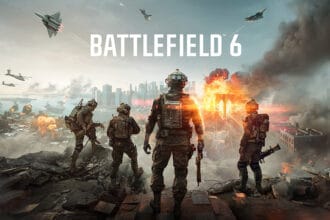


Battlefield – One of the most popular first-person shooter games is back with its 6th installment. This time, BF6 is set in a near-future modern conflict in the year 2027. You can enjoy this game on PS5, Xbox Series X|S, and PC. However, like any other Battlefield franchise, BF6 is also not free from multiple bugs and errors. One of the common errors a lot of players are encountering is the DirectX error, which usually comes with the error code 0x887e0003 (D3D12CreateDevice Failed). If you are also receiving the same error and looking for the best working solutions, try all the workarounds suggested here in this guide.
How to Fix Battlefield 6 DirectX Error Code 0x887e0003 (D3D12CreateDevice Failed)
We have gone through several threads and comments and gathered all possible solutions here. Try all the methods below to fix Battlefield 6 DirectX error code 0x887e0003 (D3D12CreateDevice Failed).
1. Manually Change Virtual Memory
One of the first solutions suggested by several players is to manually change virtual memory. If you have no idea how to do it, follow these steps:
- Open the Start menu and search for Advanced System Settings.
- In the Advanced tab, click Settings under Performance.
- Then click on the Advanced tab >> click Change under Virtual Memory.
- Disable “Automatically manage”.
- Select the primary drive (C:), and enable “Custom size”: Initial: 4096 and Maximum: 8192.
- Once done, accept everything and restart your PC.
2. Deleting the Battlefield 6 Settings Folder
Corrupted or outdated game configuration files can also prevent the game from launching and show this error. So, in this workaround, we will try deleting the BF6’s settings folder. Here is how you can do it:
- Open File Explorer.
- Then, go to: Documents >> Battlefield 6 Open Beta
- Delete the entire settings folder
- Optionally, make a backup before deleting (copy and rename it to settings.old)
- At last, relaunch the game. This will create a new settings folder automatically.
3. Registry Hack to Bypass Driver Version Check
If you are still struggling to fix the error, then try this trick. The game itself checks for a minimum AMD driver version before launching. However, the latest available drivers for Polaris and Vega cards are still below this required threshold. So, this specific trick will fool the game by thinking that you are running a newer driver by manually editing the registry values that store the AMD driver version. IMPORTANT: It is advisable to back up your registry or create a System Restore Point before making any changes.
- First of all, Press the Win + R keys on your keyboard, type regedit, and press Enter
- Then, go to the registry location HKEY_LOCAL_MACHINE\SYSTEM\CurrentControlSet\Control\Video\
- Inside this folder, find the folder that ends in \0000 (it might look like {CF66DE94-5214-11F0-9E23-E3C9CCB426FA}\0000)
- In the right pane, edit the following values:
- RadeonSoftwareVersion >> change it to: 25.6.2
- ReleaseVersion >> change it to:
- 25.10.13.04-250306a-415346C-AMD-Software-Adrenalin-Edition
- (Only the numbers before the first dash matter – make sure it’s 25.10.13.04)
- Once done, close Registry Editor
- Reboot your PC and relaunch the game.
4. Clean Uninstall and Reinstall of AMD Drivers Using DDU
If the above methods don’t work, then try for a clean uninstall and reinstall of AMD drivers using DDU. Some leftover driver files or a faulty installation can also be the root cause of this error, so try the below steps:
- Download DDU (Display Driver Uninstaller) from the official site
- Boot your PC into Safe Mode
- Launch DDU and select AMD from the dropdown
- Click “Clean and restart.”
- After reboot, download and install AMD Driver version 25.8.1 (or whichever works best for your GPU)
- Once done, reboot your PC one more time and relaunch the game.
5. Try a Stable Older Driver Version
Some players with the latest GPU versions, such as the RX 7800 XT, have suggested that newer drivers cause frequent crashes. Therefore, if you try reverting it to a known stable version, such as 25.2.1, it can also help to improve the overall gaming performance and stability. Follow the steps below to do this:
- Go to the official website of DDU (Display Driver Uninstaller) to remove the current driver.
- Then, manually install AMD driver 25.2.1 from AMD’s archive page
- At last, reboot your PC and check if the error is gone.
That’s all you can try fixing Battlefield 6 DirectX error code 0x887e0003 (D3D12CreateDevice Failed).